
Connecting to a Mac
When connecting to a Mac, Screens offers two ways to authenticate.
Mac User
This option lets you connect directly using the username and password of an existing account on the destination Mac.
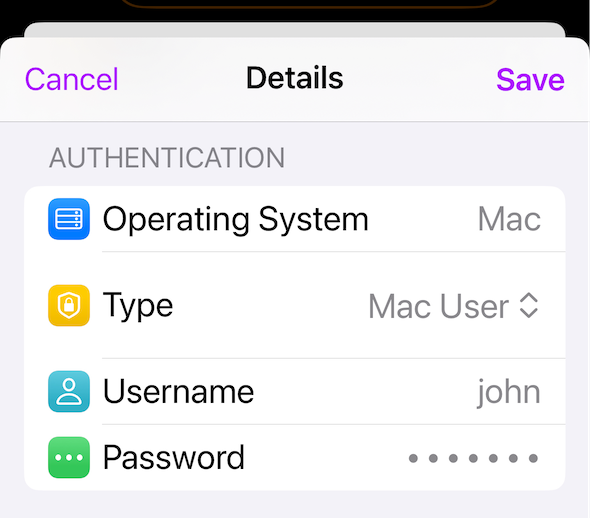
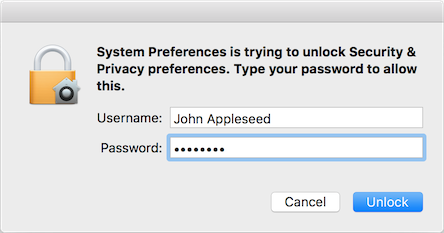
Use the same username and password you normally use to:
- Log in to your Mac after restarting it
- Unlock your Mac
- Approve system changes
Tip:
If you're not sure what your Mac username is, refer to this article.
Guest User
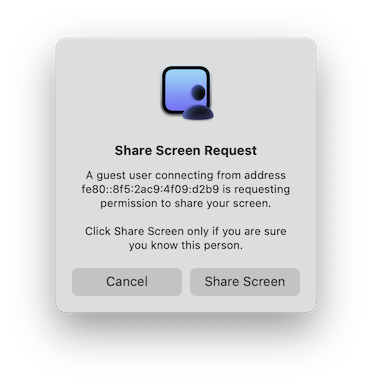
This option lets you connect without entering a username or password.
However, someone must be physically present at the destination Mac to approve the screen sharing request before the connection can begin.
This method is useful when:
- Helping friends or family
- Providing remote support
- Connecting temporarily to another Mac
Connecting to a PC
When connecting to a Windows PC, Screens supports two authentication methods depending on your VNC server configuration.
VNC Password (Recommended)
This is the recommended option.
Use the password configured in your VNC server settings.
A VNC password helps protect your computer from unauthorized access and is supported by most VNC servers.
No Authentication
This option allows connections without requiring a password.
We strongly recommend avoiding this unless:
- The connection is temporary
- The computer is only accessible on a trusted local network
- You're using a secure tunnel such as SSH or Tailscale
Without authentication, anyone who can reach the VNC server may be able to connect to your computer.