
Starting with Screens 5.9, you can quickly connect to your computers using widgets, Siri and Shortcuts without having to find and open the connection in Screens first.
Quick Connect Widget
The Connect to widget provides one-tap access to a computer directly from your Home Screen or desktop.
The widget is available on iPhone, iPad, Mac and Vision Pro.
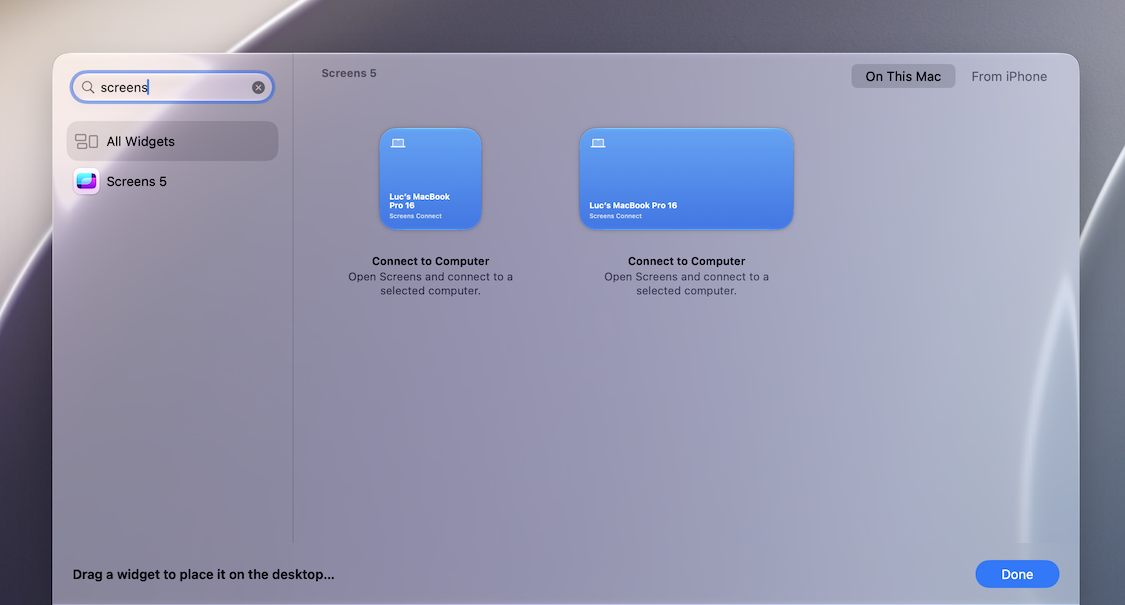
When configuring the widget, choose the computer you want to connect to. You can select connections from:
- Screens Connect
- Tailscale
- Links
- Custom connections
Nearby connections are not available because the widget must reference a connection that can be identified and configured ahead of time.
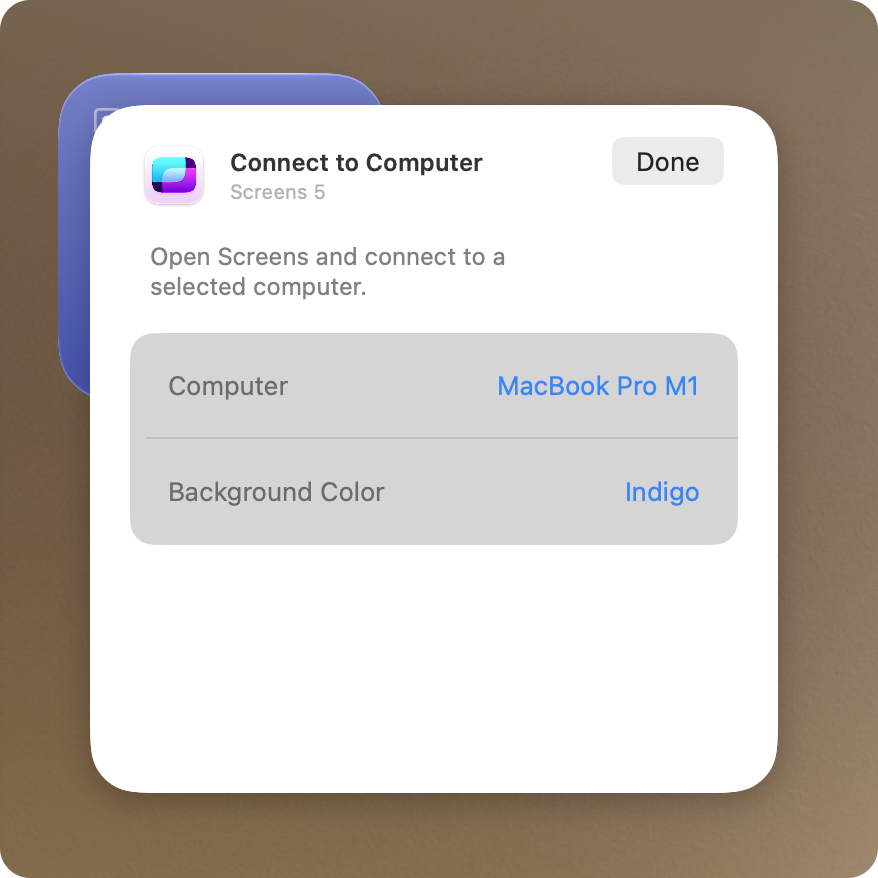
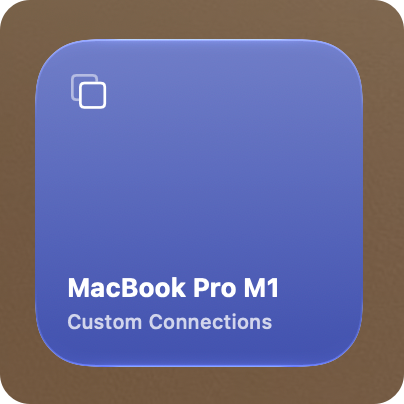
Once configured, simply select the widget to open Screens and connect to that computer.
Siri
Screens integrates with Siri so you can start a connection using your voice.
Simply ask Siri:
“Connect to [computer name] with Screens.”
For example, if your Mac is named Office Mac, say:
“Connect to Office Mac with Screens.”
Siri will launch Screens and initiate the connection.
Shortcuts
Screens provides a Connect to Computer action that you can use with Apple's Shortcuts app.
Open the Shortcuts app and look for Screens under App Shortcuts. From there, you can use the Connect to Computer action and choose the computer you want to connect to.
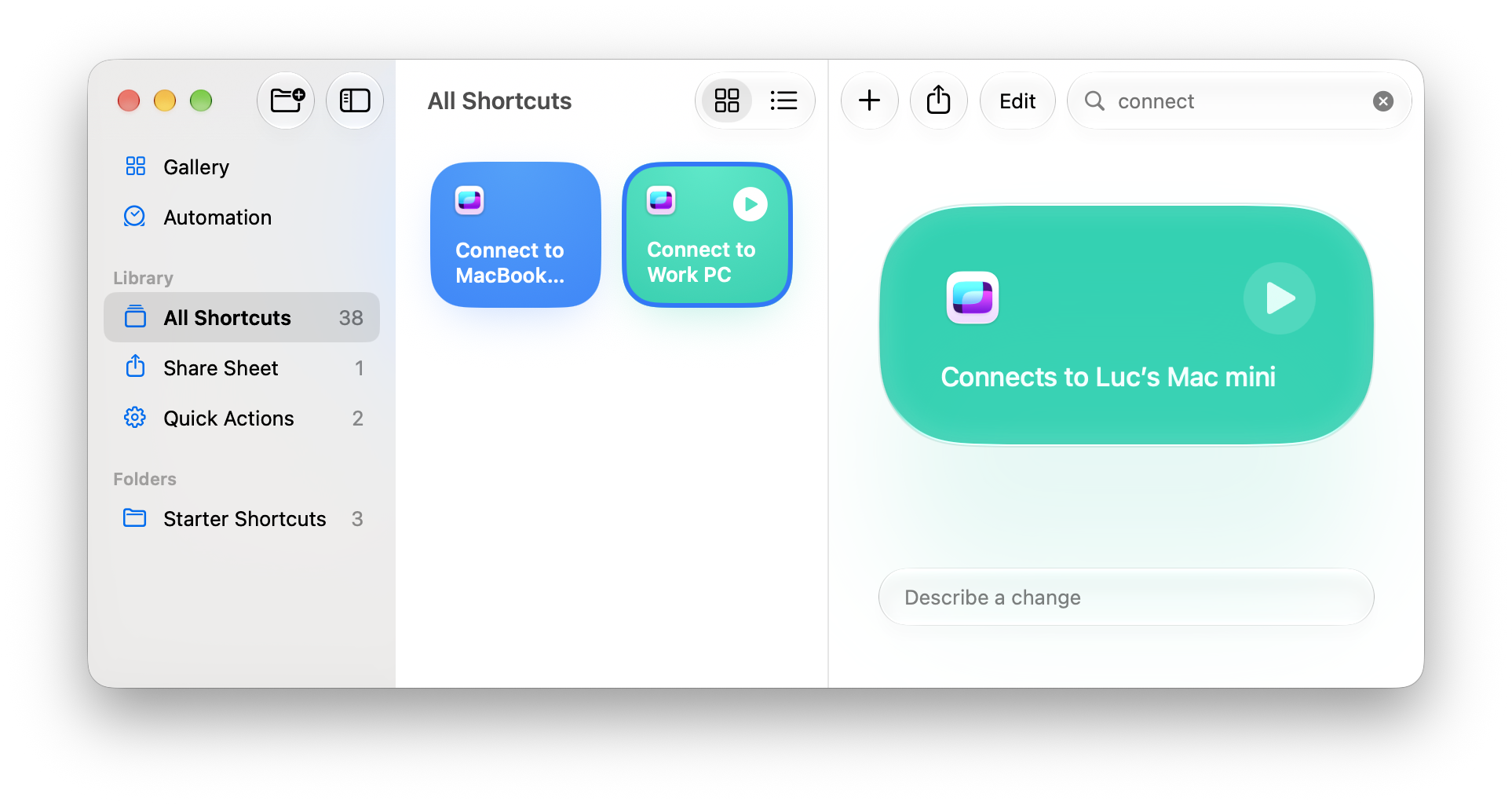
You can use the action on its own or include it as part of a larger shortcut or automation.