
Screens 5.9 或更新版本可以利用連接到 iPhone 或 iPad 的外接顯示器,無論是透過 AirPlay 無線連線,或是透過相容的 USB-C 連接。
需求:AirPlay 與外接顯示器支援需要 iOS 27 或 iPadOS 27 或更新版本。
在 iPad 上使用外接顯示器
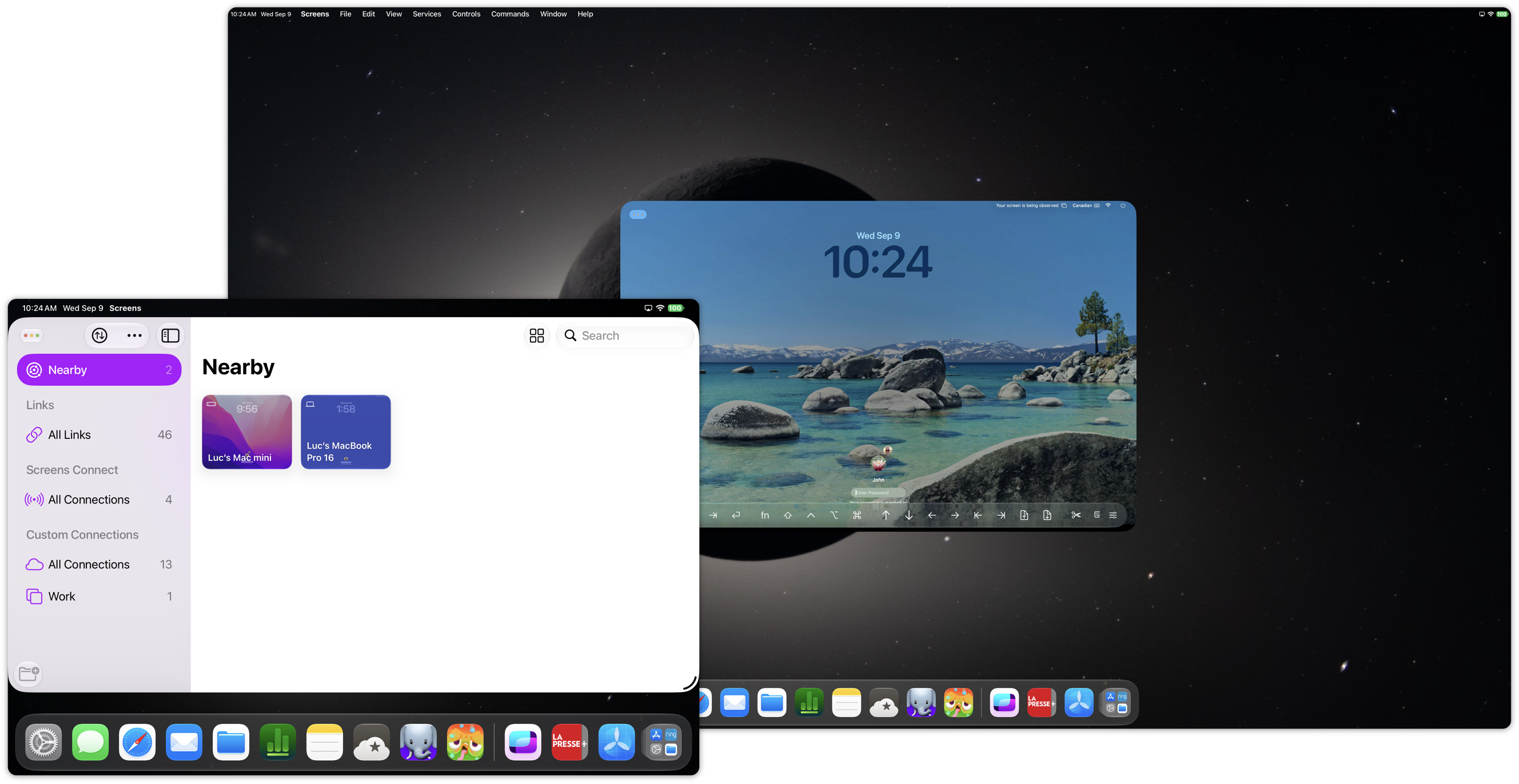
在 iPad 上,Screens 支援兩種使用外接顯示器的方式:
- 將 Screens 作為一般的 iPadOS 視窗使用,顯示在你的 iPad 或外接顯示器上。
- 將 Screens 保留在你的 iPad 上,並將遠端電腦鏡像到外接顯示器。
預設情況下,Screens 的行為與其他任何 iPadOS App 相同。連接外接顯示器不會自動接管它,因此你可以繼續使用 iPadOS 的多工處理,並將 Screens 與其他 App 並排安排。
將你的遠端電腦鏡像到外接顯示器
如果你偏好將 Screens 視窗保留在 iPad 上,同時在外接顯示器上顯示遠端電腦:
- 在 Screens 中連線到一台電腦。
- 確認 Screens 視窗顯示在你的 iPad 顯示器 上。
- 使用 AirPlay 或 USB-C 連接外接顯示器。
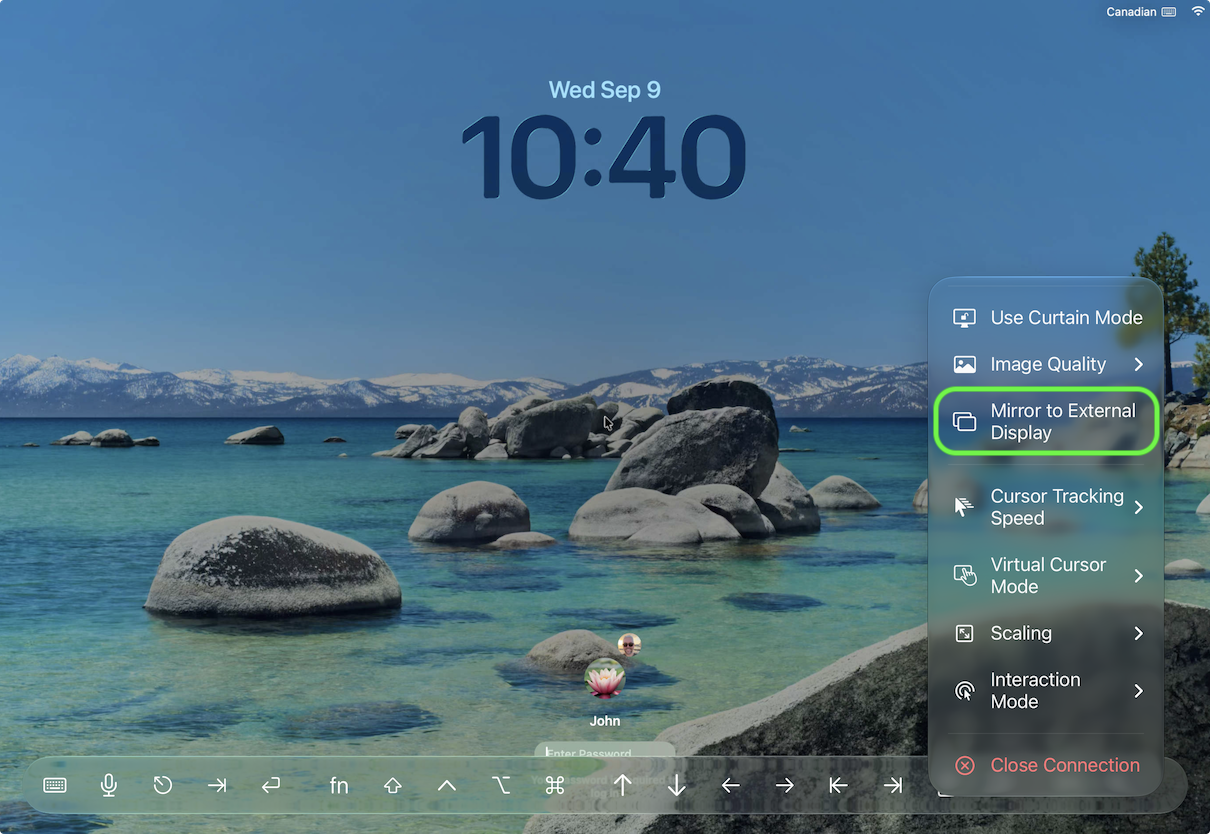
- 在互動式工具列右側打開 Actions 選單。
- 啟用 Mirror to External Display。
現在遠端電腦會顯示在外接顯示器上,而 Screens 仍可在你的 iPad 上使用。
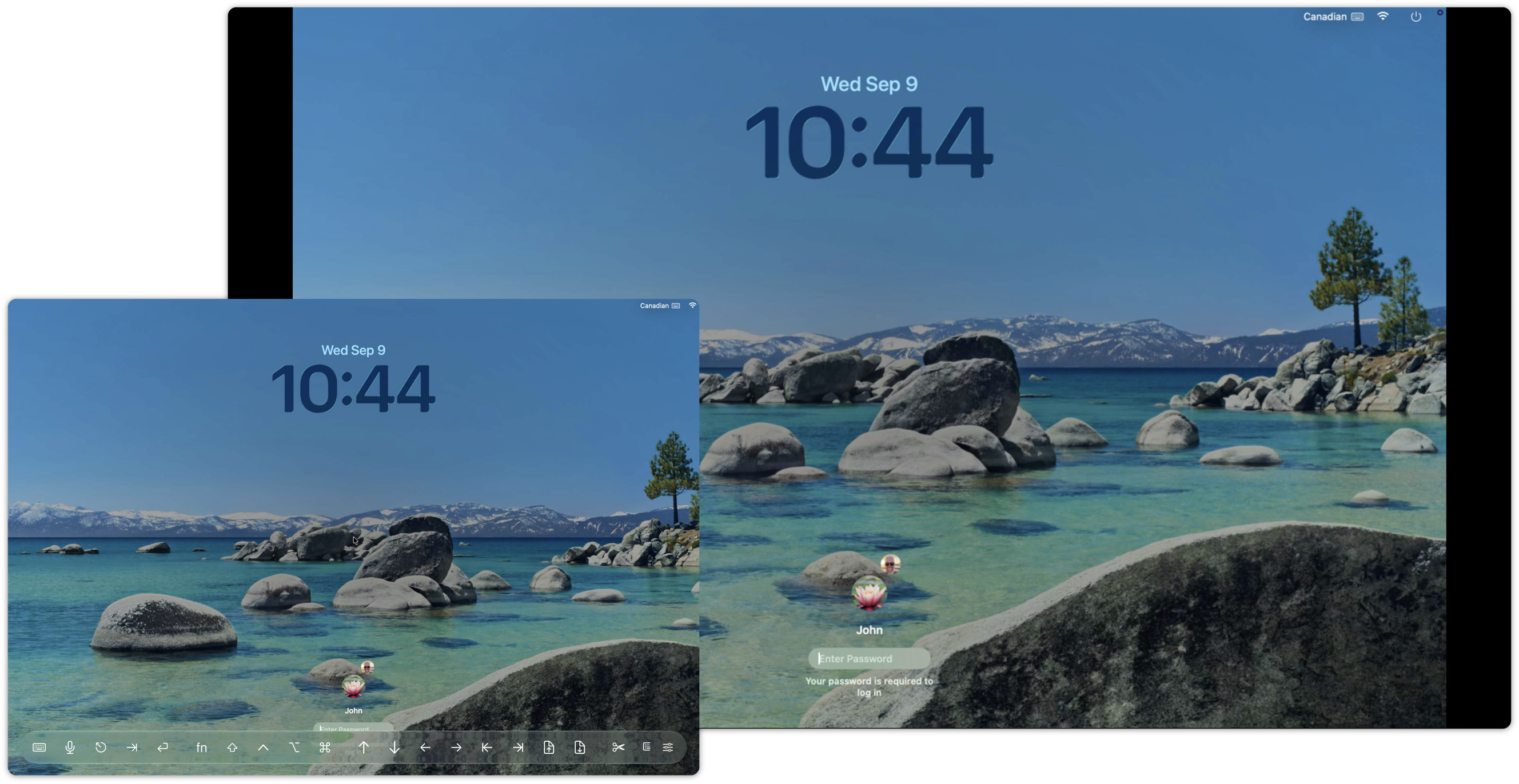
注意:只有在 Screens 視窗位於 iPad 顯示器上且外接顯示器可用時,Mirror to External Display 才會出現。如果 Screens 視窗本身已在外接顯示器上,該選項將不會出現。
若要停止鏡像,請再次打開 Actions 選單並停用 Mirror to External Display。
在 iPhone 上使用 AirPlay
在 iPhone 上,Screens 可直接與系統內建的 AirPlay 顯示鏡像搭配運作。Screens 中沒有 Mirror to External Display 選項。
若要在支援 AirPlay 的顯示器上顯示 Screens:
- 在你的 iPhone 上打開 控制中心。
- 點一下 畫面鏡像。
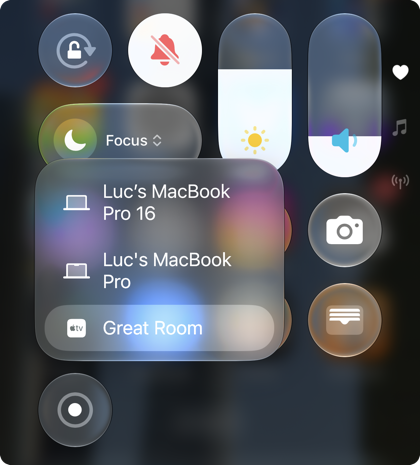
- 選取你的 AirPlay 顯示器。
- 打開 Screens 並連線到你的電腦。
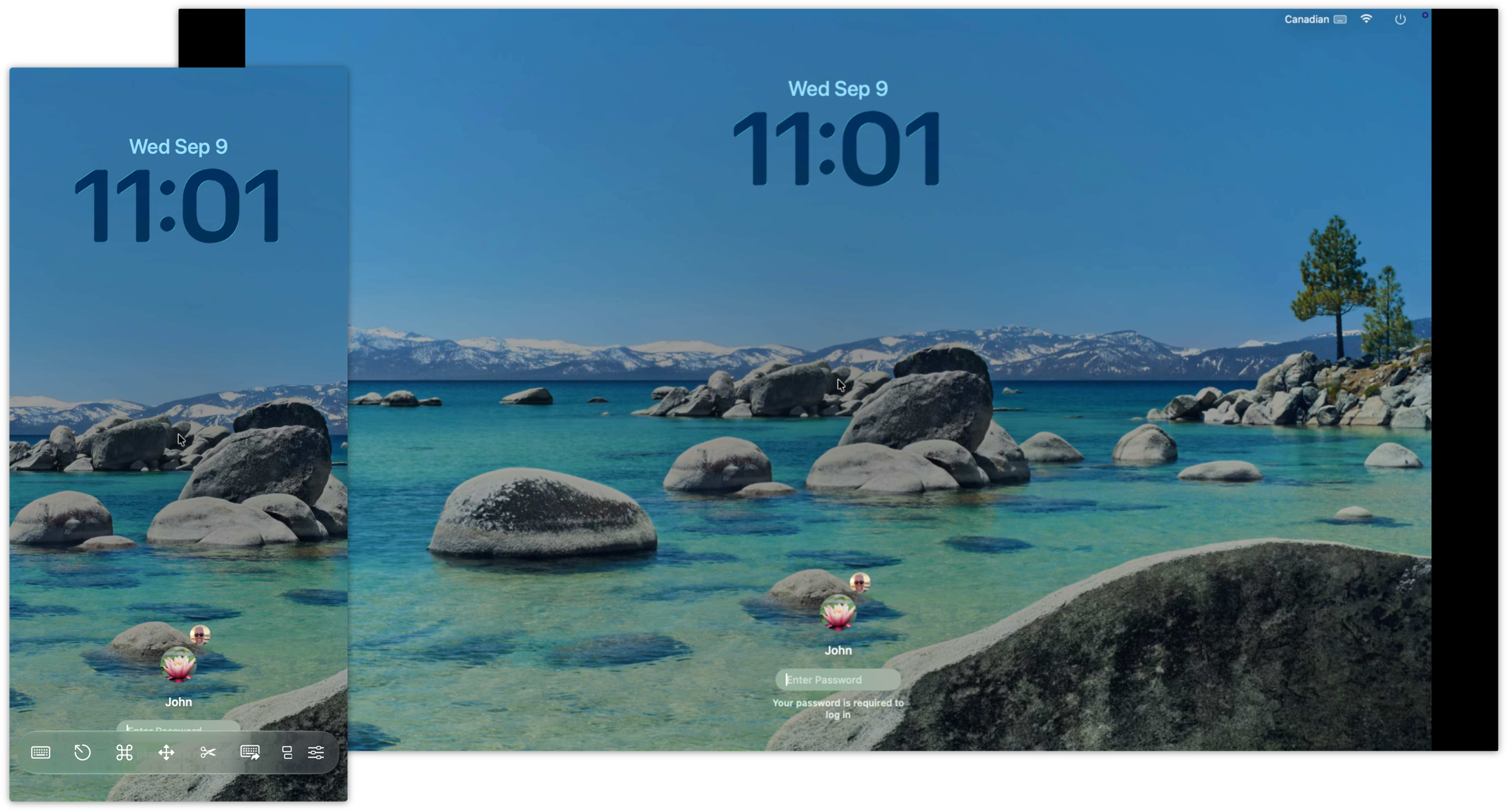
你的 iPhone 顯示器,包括你的 Screens 工作階段,將會鏡像到所選的顯示器。
若要停止,請回到 控制中心 > 畫面鏡像,並中斷與 AirPlay 顯示器的連線。