
High Performance is an advanced Screen Sharing mode introduced by Apple in macOS 14 Sonoma. It brings dynamic desktop resizing, smoother graphics, improved image quality, remote audio, and virtual displays to compatible Macs.
And the best part? There's no additional software to install on your Mac!
As long as your remote Mac has Apple silicon (M1 or later), runs macOS 14 Sonoma or later, and has Screen Sharing enabled, you're ready to go. Just connect using Screens and enjoy High Performance Screen Sharing.
Unlike Standard Screen Sharing, which uses traditional VNC screen updates, High Performance can stream your remote desktop using HEVC (High Efficiency Video Coding), delivering a more fluid and responsive experience.
Key Features
- Smoother graphics: HEVC video streaming provides more fluid screen updates, especially when scrolling, moving windows, or playing videos.
- Improved image quality: High-quality video encoding delivers sharper, more detailed visuals.
- Remote audio: Hear sounds playing on your remote Mac directly through the device running Screens.
- Dynamic desktop resizing: Automatically adjusts the remote desktop resolution to fit your device's display or connection window, eliminating the need for constant zooming and panning.
- Virtual displays: Creates a private desktop independently of the remote Mac's physical displays.
- Display privacy: When connecting as the logged-in user, the remote Mac's physical displays are automatically blanked, preventing anyone nearby from seeing your session.
- Built-in encryption: Screen contents, input, clipboard data, and audio/video streams are encrypted without requiring an SSH tunnel.
Requirements
High Performance works out of the box with compatible Macs. No additional host application, drivers, or special configuration required.
All you need is a remote Mac with:
- Apple silicon (M1 or later).
- macOS 14 Sonoma or later.
- Screen Sharing or Remote Management enabled.
If you haven't enabled Screen Sharing yet, follow our guide to preparing your Mac for Screen Sharing.
High Performance is available in Screens for iPhone, iPad, Mac, and Apple Vision Pro.
Unlike Apple's own Screen Sharing app, Screens supports High Performance connections from Intel-based Macs, although HEVC video streaming and remote audio are unavailable. Other High Performance features, including dynamic resizing, virtual displays, and display privacy, remain supported.
If the remote Mac doesn't support High Performance, Screens automatically uses Standard Screen Sharing instead.
Configuring High Performance
To configure High Performance and its features:
- Edit your connection in Screens.
- Select Display.
- Choose High Performance under Screen Sharing Mode.
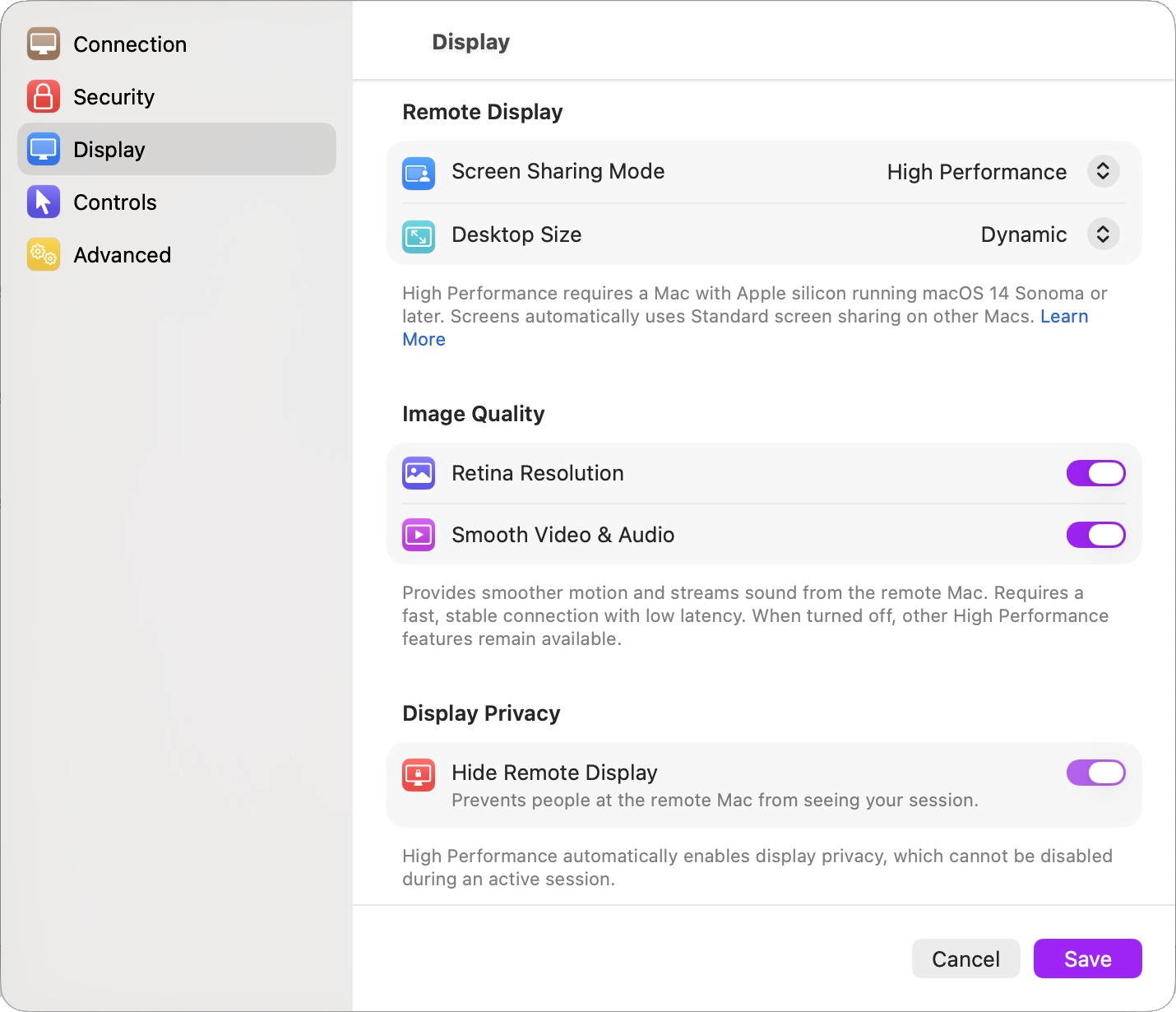
From here, you can configure desktop sizing, Retina resolution, and Smooth Video & Audio.
Display settings are saved separately for each connection and device type (iPhone, iPad, Mac, and Apple Vision Pro), allowing you to tailor the experience to different computers, devices, and network conditions.
Desktop Sizing
High Performance creates virtual displays that can automatically adapt to your screen or use custom dimensions.
To configure desktop sizing, edit your connection and navigate to Display > Desktop Size.
You can choose between two modes:
- Fixed: Lets you specify a custom desktop width and height, regardless of your device's display or connection window size.
- Dynamic: Automatically adjusts the remote desktop resolution to fit your device's display or connection window.
Fixed Mode
Fixed mode lets you choose the dimensions of your remote desktop.
- Width and Height: Specify your preferred desktop dimensions, up to 1920 × 1080 points.
- Virtual Displays (Mac and Apple Vision Pro only): Choose between one or two virtual displays. When using two displays, both use the same configured dimensions.
- Retina Resolution: Choose between sharper Retina graphics and additional desktop space.
With Retina Resolution enabled, a desktop configured at 1920 × 1080 uses a HiDPI resolution of 3840 × 2160 pixels.
With Retina Resolution disabled, the same configuration provides a non-Retina desktop with twice the width and height (3840 × 2160 points), offering four times the usable workspace at the expense of image sharpness.
Dynamic Mode
Dynamic mode automatically adjusts the remote desktop to fit your available screen space.
- iPhone and iPad: The desktop adapts to your device's display, including when rotating between portrait and landscape.
- Mac and Apple Vision Pro: The desktop adjusts as you resize the connection window.
Dynamic mode uses a single virtual display and automatically adapts to your available screen space.
Want more desktop space? Disable Retina Resolution to double the remote desktop's width and height, giving you up to four times the usable workspace.
This is particularly useful on iPhone and iPad, where the default Retina resolution may make desktop applications feel cramped.
You can enable or disable Retina Resolution in both Fixed and Dynamic modes.
Retina Resolution
Retina Resolution determines whether your remote desktop prioritizes image sharpness or usable workspace.
- Enabled: Creates a HiDPI (Retina) desktop with sharp text and interface elements at a comfortable size.
- Disabled: Creates a non-Retina desktop with twice the width and height, providing four times the usable desktop area with smaller interface elements.
For example, on an iPad with an available display size of 1366 × 1024 points:
- Retina enabled: 1366 × 1024 HiDPI (2732 × 2048 pixels).
- Retina disabled: 2732 × 2048 non-Retina.
Both configurations use the same number of pixels, but disabling Retina Resolution provides significantly more workspace.
Note: Available resolutions depend on your device's display settings, including Display Zoom on iPhone and iPad, and the limits imposed by macOS.
Apple documents a maximum virtual display resolution of 3840 × 2160 pixels (or 1920 × 1080 HiDPI). Some configurations may therefore be limited to lower resolutions.
For more information, see Apple's High Performance documentation.
Smooth Video & Audio
High Performance uses HEVC video streaming to deliver smoother graphics and improved image quality, along with audio from your remote Mac.
Smooth Video & Audio is not available when connecting from an Intel-based Mac. However, all other High Performance features remain supported.
For the best experience, video streaming requires a fast, stable connection with low latency. Apple recommends at least 75 Mbps for a single 4K display, although lower resolutions may require less bandwidth.
On slower or unstable connections, you may experience choppy video, delayed screen updates, or reduced responsiveness.
If your connection struggles with video streaming, you can disable Smooth Video & Audio while keeping High Performance enabled.
To do so:
- Open the connection's settings in Screens.
- Select Display.
- Turn off Smooth Video & Audio under Image Quality.
- Save your changes and reconnect.
Screens will use standard framebuffer updates instead of HEVC video streaming.
All other High Performance features remain available, including virtual displays, dynamic resizing, built-in encryption, and display privacy. Remote audio will be unavailable.
Network Connectivity
High Performance works with both local and remote connections, including:
- Nearby connections on your local network.
- Screens Connect.
- Tailscale and other compatible VPN connections.
- Direct connections over the Internet.
HEVC video and remote audio use UDP, so your network must allow the necessary UDP traffic.
If UDP streaming isn't available, Screens automatically falls back to standard framebuffer updates while retaining the other High Performance features.
Using High Performance with SSH
High Performance connections are already encrypted, so SSH isn't required to protect your session.
However, SSH tunnels only carry TCP traffic, while HEVC video and remote audio use UDP.
When SSH is enabled, Screens continues using encrypted High Performance connections with virtual displays, dynamic resizing, and display privacy, but falls back to standard framebuffer updates without remote audio.
For the full High Performance experience, we recommend leaving SSH disabled unless your network configuration requires it.
For more information, see Are High Performance connections encrypted?.
Standard vs. High Performance
Standard Screen Sharing remains available and supports a wider range of computers, including older Intel Macs, Windows PCs, and Linux systems.
Standard mode displays the remote computer's existing desktop, making it ideal when you want to view or control the same screen as someone physically present at the remote computer.
High Performance creates a private virtual desktop with dynamic resizing, smoother video streaming, and remote audio on compatible Macs.
You can also switch between Standard and High Performance when connecting to a compatible Mac. Simply right-click (or touch and hold) the connection, then select Connect in Standard or Connect in High Performance.
Learn More
For additional technical information about Apple's High Performance Screen Sharing technology, see Apple's documentation.