
Screens 5.9 or later can take advantage of an external display connected to your iPhone or iPad, either wirelessly using AirPlay or through a compatible USB-C connection.
Requirement: AirPlay and External display support requires iOS 27 or iPadOS 27 or later.
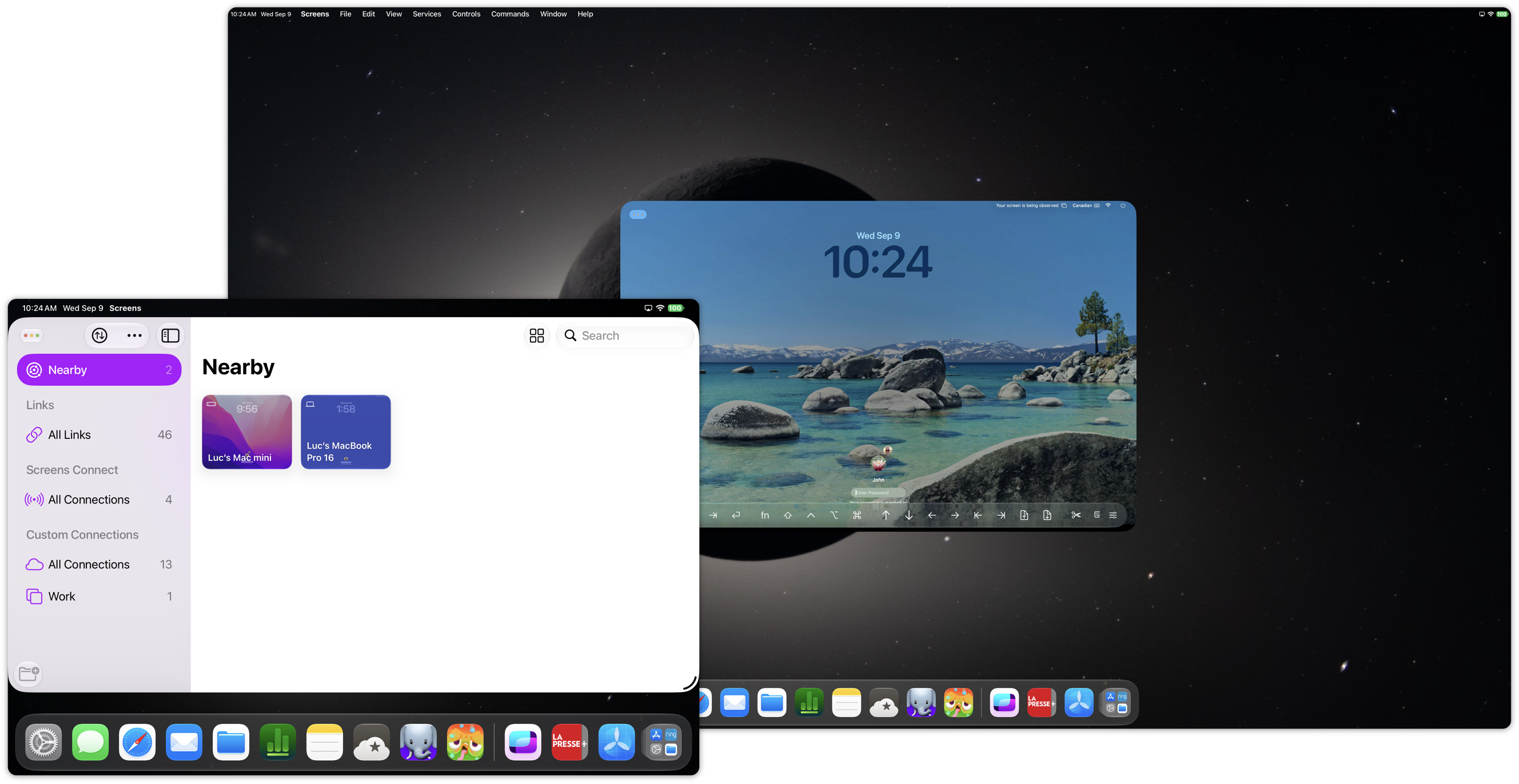
Using an External Display with iPad
On iPad, Screens supports two different ways of working with an external display:
- Use Screens as a regular iPadOS window on either your iPad or external display.
- Keep Screens on your iPad and mirror the remote computer to the external display.
By default, Screens behaves like any other iPadOS app. Connecting an external display does not automatically take it over, so you can continue using iPadOS multitasking and arrange Screens alongside your other apps.
Mirror Your Remote Computer to the External Display
If you prefer to keep the Screens window on your iPad while displaying the remote computer on the external display:
- Connect to a computer in Screens.
- Make sure the Screens window is displayed on your iPad's display.
- Connect an external display using AirPlay or USB-C.
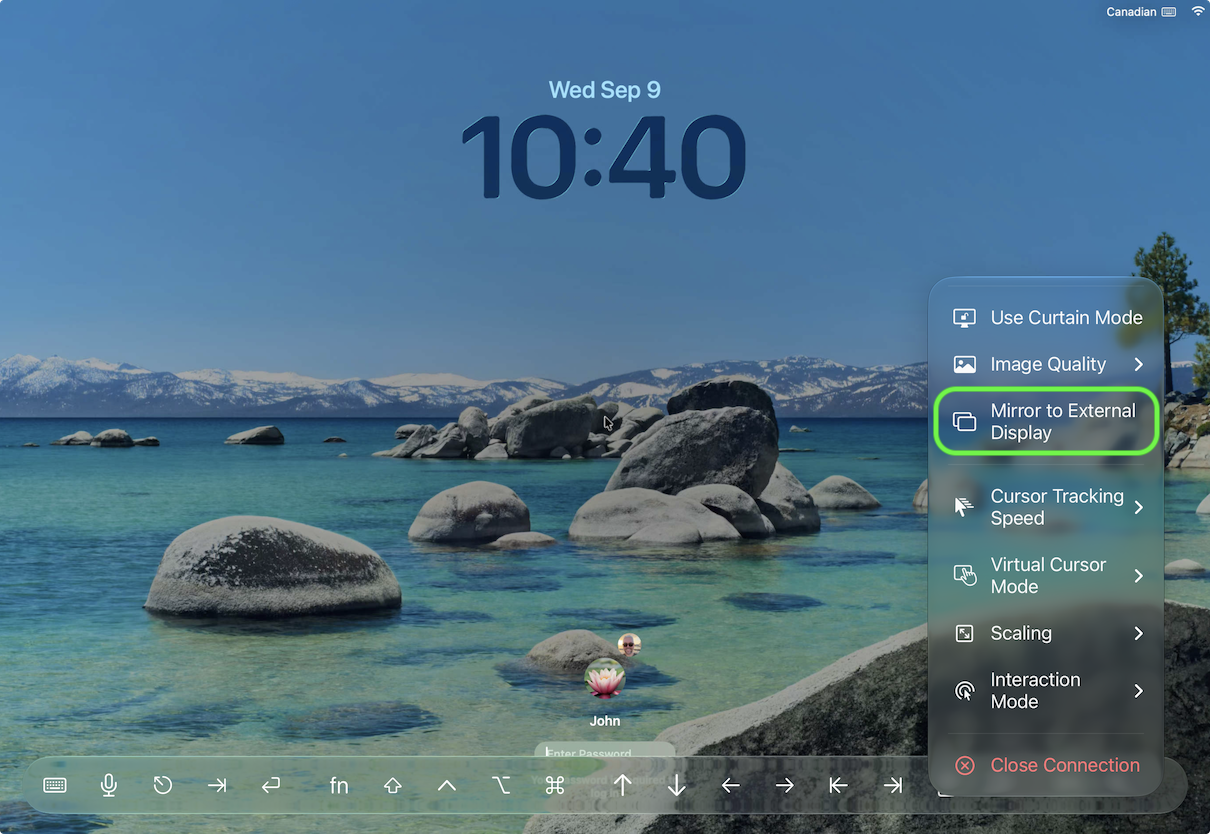
- Open the Actions menu on the right side of the interactive toolbar.
- Enable Mirror to External Display.
The remote computer will now be displayed on the external display while Screens remains available on your iPad.
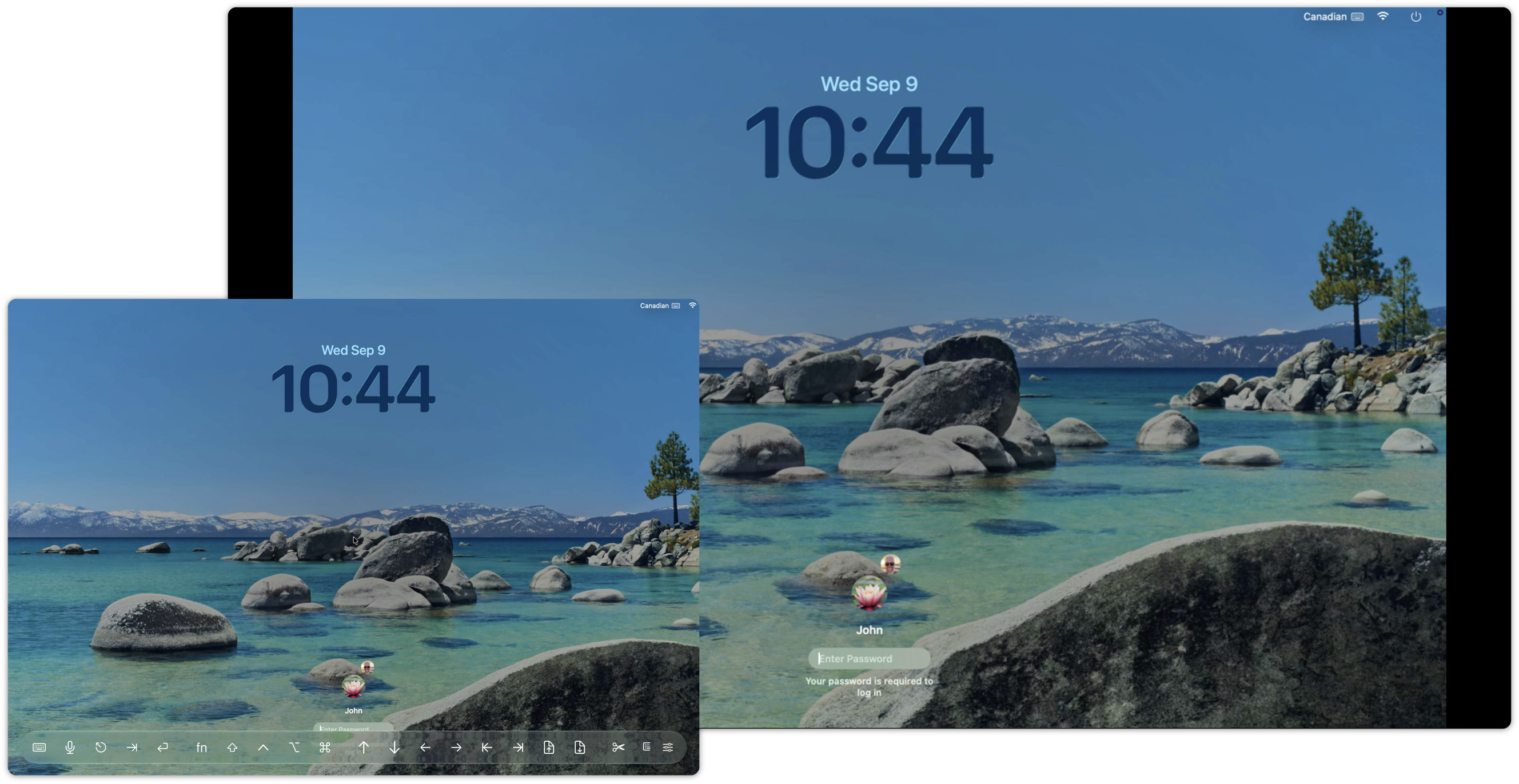
Note: Mirror to External Display only appears when the Screens window is on the iPad's display and an external display is available. If the Screens window itself is already on the external display, the option will not appear.
To stop mirroring, open the Actions menu again and disable Mirror to External Display.
Using AirPlay with iPhone
On iPhone, Screens works directly with the system's built-in AirPlay display mirroring. There is no Mirror to External Display option in Screens.
To display Screens on an AirPlay-compatible display:
- Open Control Center on your iPhone.
- Tap Screen Mirroring.
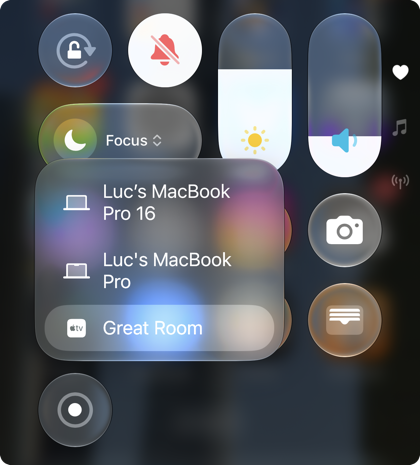
- Select your AirPlay display.
- Open Screens and connect to your computer.
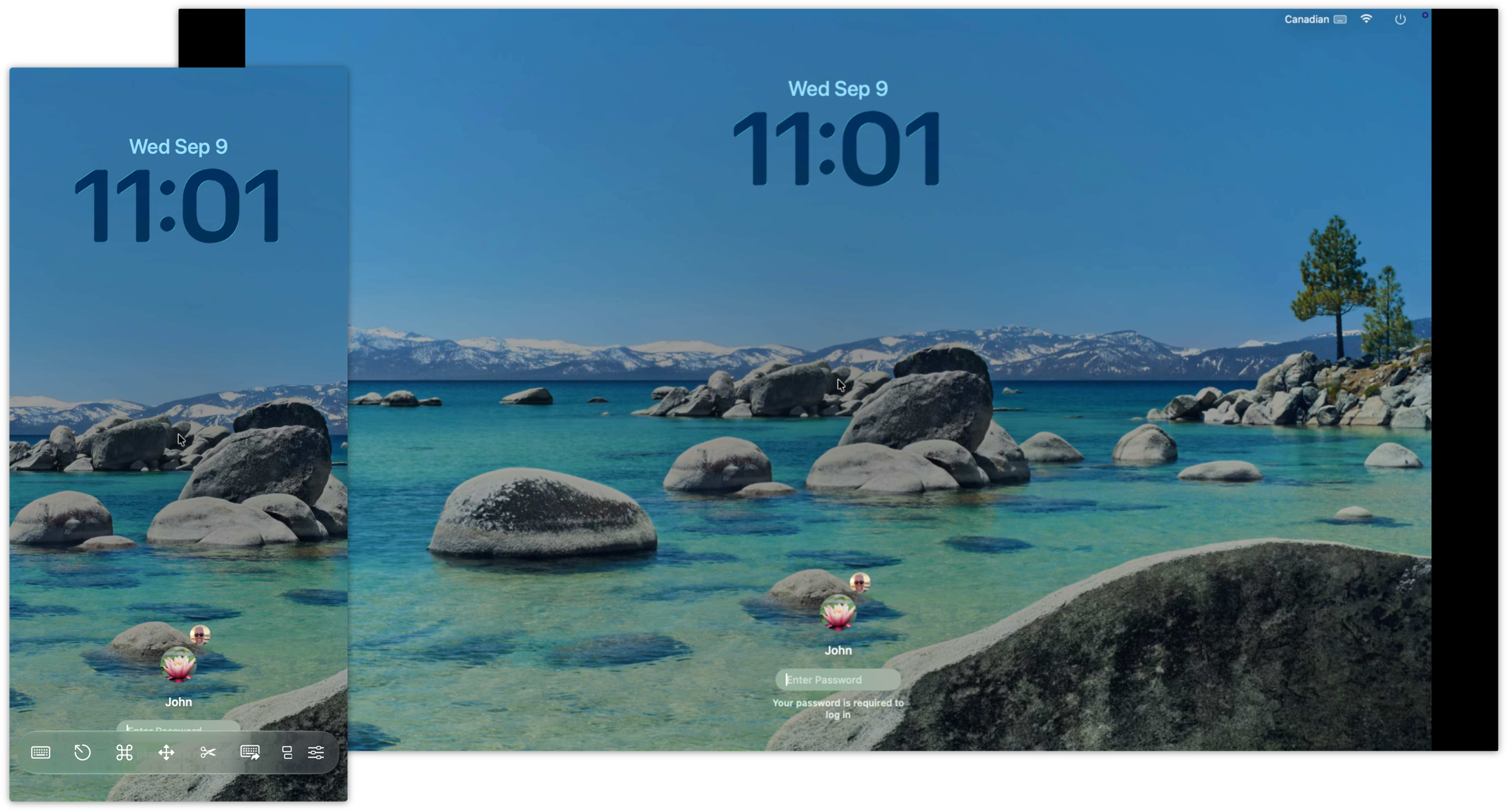
Your iPhone's display, including your Screens session, will be mirrored to the selected display.
To stop, return to Control Center > Screen Mirroring and disconnect from the AirPlay display.